niceNESs
A textmode Digital Audio Workstation to make NES-sounding chiptunes, using Music Macro Language (MML).
* the web browser version is just a preview as it cannot save files to make the audio
** in case some other game or app launches, do browse in Privacy mode
For support and the music-making community using niceNESs, do join us on Discord.
Scoreless Music Discord : https://discord.gg/s2jgymatga
QUICKSTART GUIDE
- press F1 to start a new project
- Anything in dark and light cyan can be clicked
- Left-click and hold to draw notes, right-click and hold to erase notes
- If there is data in MML preview window, press F4 to hear it
- Use <Space> to stop any playback
RECOMMENDED MUSIC-MAKING FLOW
- Click "Title", "Composer", "Programer", "Copyright" to fill them in
- Click the number to the right of Tempo to set speed of the composition
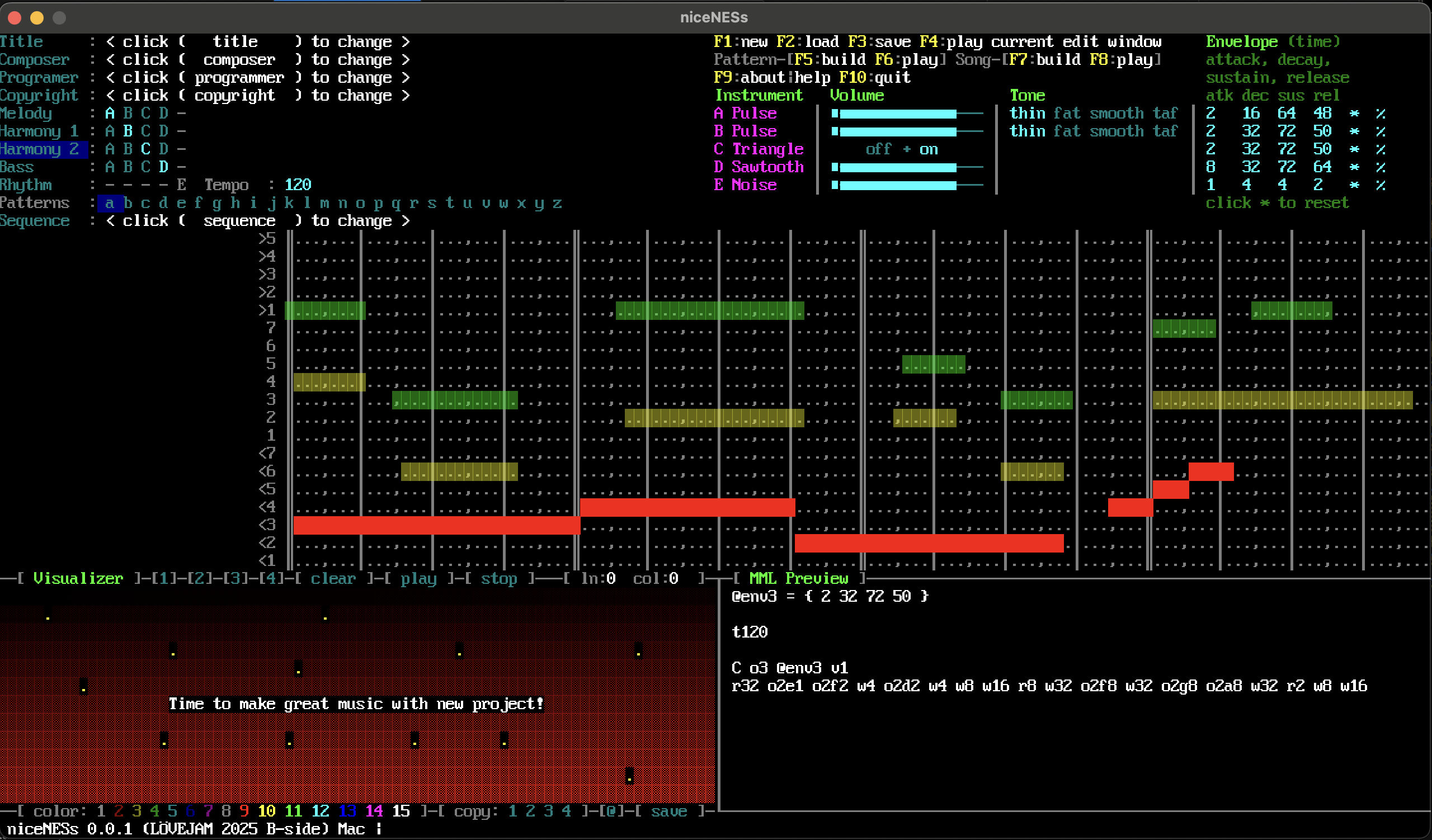
- Click "a" to the right of Pattern to select your first pattern
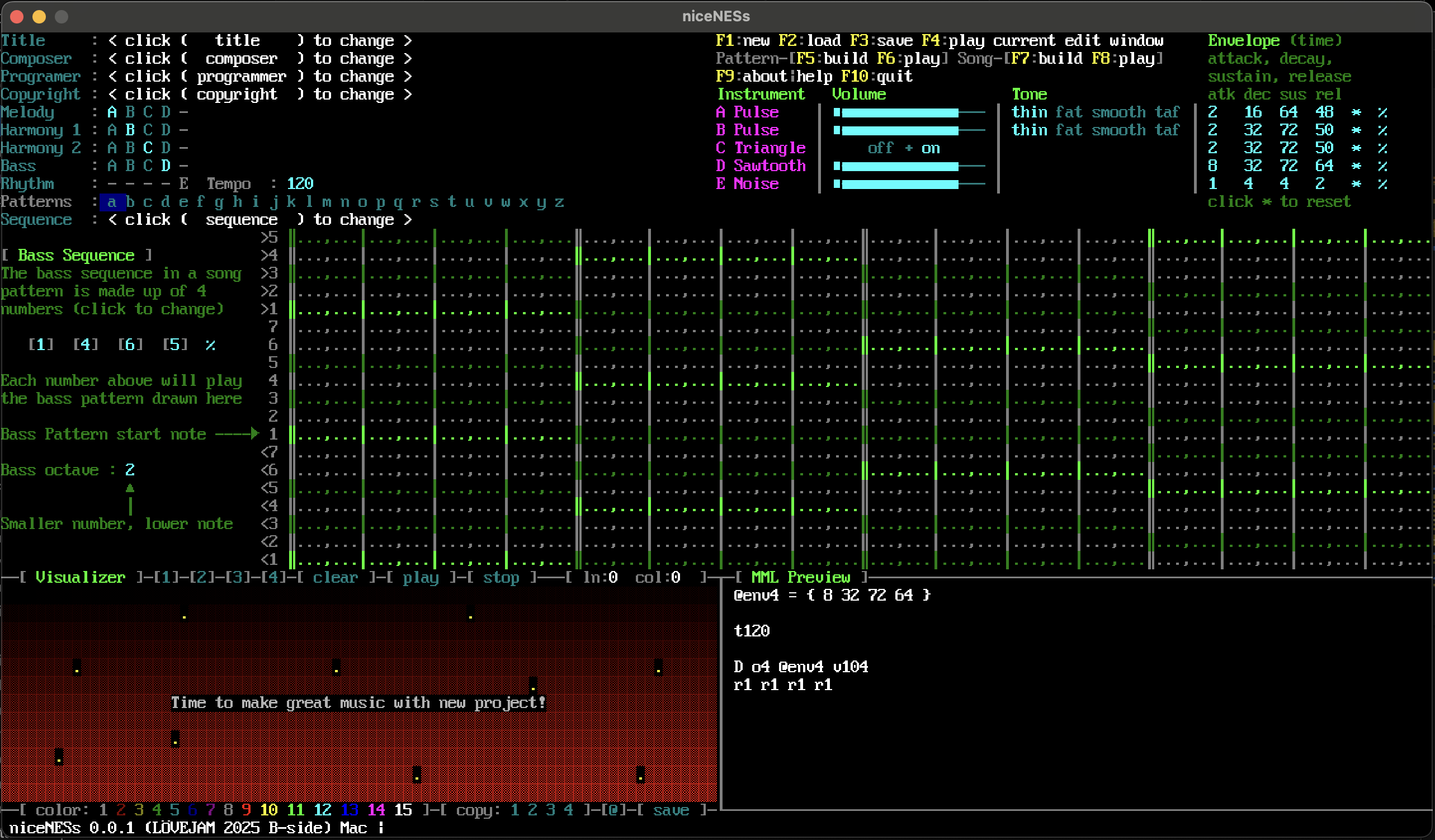
- Click Bass to enter bass section, and choose 4 numbers for your Bass Sequence
- Draw your Bass line, using the Track Lights to help stay in harmonic groove
- Track Lights will appear to help you draw notes "in the harmonic groove"
- Click Melody to compose a unique tune, where you generally want your notes to travel along, or land in the Track Lights
- Click Harmony1 to add some supporting notes, usually drawn lower than the Melody line, and moving along the Track Lights
- Click Harmony2 to add more support notes, usually lower than Harmony1
- (Rhythm is not yet implemented)
- To hear all the parts play together, click "a" next to Pattern again, then press F4
- Change the Volume, tone and envelope of each instrument and to hear how they sound. If you make any changes, do click on Melody, Harmony1, Harmony2, and Bass to refresh the MML code before clicking "a" pattern to preview with F4
- When you are happy with pattern "a", click pattern "b" to do the same to extend your song
- To quickly copy instrument settings, there is a Copy feature for pattern "b" to "z"
- When you have all your patterns done, click Sequence to string your patterns together to make a song
- Press F8 to hear your song once done
B-SIDE THEME
Along with the game jam's theme, there is a B-Side to the DAW. Coded in the last 9 hours before submission, niceNESs bottom left window was converted into a simple ASCII animation editor running 4 frames per second. Each pattern has it's own 4 frames so you can make an ASCII movie with syncronized chiptunes soundtrack.
To use the Visualizer editor:
- Select a pattern first
- Click 1 to 4 at the top to switch frames in that pattern
- <clear> erases everything in the current frame
- <play> and <stop> allows previewing the animation
- Click a color number to change color, then click in the window to enter text
- Click a number next to <copy> to copy that frame into the current frame
- Click @ to activate/deactive the Onion Skin (overlaying the previous frame)
- (save does not work)
ADDITIONAL INFORMATION
Source code : https://github.com/xanthiacoder/niceNESs
Download